AWS S3 HomeLab Part 6: Static Website Hosting on S3
Project #1: Deploy a real website to S3, from scratch, under 10 minutes.
Static Website Hosting on S3
Project #1: Deploy a real website to S3, from scratch, under 10 minutes.
Two Ways to Access an S3 Object via HTTP
S3 exposes your objects through two different HTTP endpoints. They look similar but behave differently:
| REST API Endpoint | Website Endpoint | |
|---|---|---|
| URL format | bucket.s3.region.amazonaws.com/key | bucket.s3-website-region.amazonaws.com/key |
| Protocol | HTTP and HTTPS | HTTP only (no HTTPS) |
| Index document | No — / returns an XML listing or 403 | Yes — / serves index.html |
| Error pages | No — returns XML error | Yes — returns your custom error.html |
| Redirect rules | No | Yes — bucket-level routing rules |
| How to enable | Always active (REST API) | Must be enabled per bucket |
| Use case | Programmatic access, direct downloads, API | Browser-facing static websites |
Critical detail: The website endpoint does not support HTTPS. For a production static site with HTTPS, you put CloudFront in front of S3. We'll cover that in a future lesson. For now, the website endpoint is HTTP-only — fine for learning, not for production.
What “Enable Static Website Hosting” Actually Does
When you enable static website hosting on a bucket, S3 adds three layers of behavior:
- Index document routing: A request to
/or/folder/returns/index.htmlor/folder/index.html. This is what makes a URL likemysite.com/blog/serveblog/index.htmlwithout showing the filename in the URL. - Error document routing: When S3 would normally return a 404 or 403, it instead serves your custom error page (e.g.,
error.html). The HTTP status code is still 404 — the browser just gets a nice page instead of ugly XML. - Redirect rules: Optional XML/JSON routing rules that map old URLs to new ones. Useful for site migrations.
Under the hood, S3 adds a lightweight HTTP layer on top of the object store that intercepts requests and applies these rules before reaching for the actual S3 objects.
The Complete Recipe — What You Need
A working S3 static website requires four things configured correctly. Miss any one and the site breaks:
| # | What | CLI command | Miss it → |
|---|---|---|---|
| 1 | Content uploaded | aws s3 cp index.html s3://bucket/ | Empty site, 404 |
| 2 | Static website hosting enabled | aws s3 website s3://bucket/ --index-document index.html --error-document error.html | REST endpoint only; no index/error routing |
| 3 | Public-read bucket policy | aws s3api put-bucket-policy with s3:GetObject for Principal: * | 403 on every request |
| 4 | BPA selectively disabled | BlockPublicPolicy=false, RestrictPublicBuckets=false | Bucket policy accepted but ignored; 403 |
You already know how to do all four from lessons 0001 (upload) and 0002 (policy + BPA). This lesson ties them together with the website hosting switch.
Bucket Naming for Custom Domains
If you plan to use a custom domain (e.g., www.myblog.com), the bucket must be named exactly the same as the domain:
Bucket name: www.myblog.com     →  Serves at: www.myblog.com.s3-website-us-east-1.amazonaws.com
Bucket name: myblog.com         →  Serves at: myblog.com.s3-website-us-east-1.amazonaws.com
Then you create a CNAME DNS record pointing your domain to the S3 website endpoint. S3 uses the Host header from the incoming request to determine which bucket to serve — if the hostname doesn't match the bucket name, you get a 404.
For today's lab, we'll use a descriptive bucket name and access it through the long S3 website URL. Custom domains (and HTTPS via CloudFront) are for a future lesson.
Lab: Deploy a Static Website to S3
1. Create the bucket
aws s3api create-bucket \
  --bucket learn-devops-site-YOURNAME-0006 \
  --region ap-southeast-1 \
  --create-bucket-configuration LocationConstraint=ap-southeast-1
2. Create index.html — your homepage
Here is the code for the index.html.
<!DOCTYPE html>
<html lang="en">
<head>
<meta charset="UTF-8">
<meta name="viewport" content="width=device-width, initial-scale=1.0">
<title>My S3-Hosted Site</title>
<style>
  :root { --bg: #fafaf5; --fg: #1a1a1a; --accent: #e67e00; --muted: #666; --measure: 38rem; }
  *, *::before, *::after { box-sizing: border-box; margin: 0; padding: 0; }
  body { max-width: var(--measure); margin: 3rem auto; padding: 0 1.2rem; font-family: Georgia, serif; line-height: 1.6; color: var(--fg); background: var(--bg); }
  h1 { font-size: 2rem; margin-bottom: 0.5rem; color: var(--accent); }
  .subtitle { color: var(--muted); font-style: italic; margin-bottom: 2rem; }
  nav { margin-bottom: 2rem; }
  nav a { color: var(--accent); text-decoration: none; margin-right: 1.5rem; }
  nav a:hover { text-decoration: underline; }
  .card { border: 1px solid #e0e0d8; border-radius: 6px; padding: 1.2rem; margin-bottom: 1rem; }
  .card h2 { font-size: 1.2rem; margin-bottom: 0.3rem; }
  .card p { color: var(--muted); margin: 0; }
  footer { margin-top: 4rem; padding-top: 1rem; border-top: 1px solid #e0e0d8; color: var(--muted); font-size: 0.85rem; }
</style>
</head>
<body>
<h1>Hello, S3 World</h1>
<p class="subtitle">This entire site is served from an S3 bucket. No servers. No scaling worries. Just static files on object storage.</p>
<nav>
  <a href="/">Home</a>
  <a href="/about">About</a>
  <a href="/nonexistent">Test 404</a>
</nav>
<div class="card">
  <h2>What just happened?</h2>
  <p>You enabled S3 static website hosting, wrote a bucket policy for public read, disabled the right BPA settings, and uploaded HTML files. That's all it takes.</p>
</div>
<div class="card">
  <h2>Under the hood</h2>
  <p>S3 intercepts requests to the website endpoint, applies index-document routing (GET / → index.html), handles error routing (404s → error.html), and serves the objects with correct Content-Type headers.</p>
</div>
<div class="card">
  <h2>Tech stack</h2>
  <p>S3 (hosting) + IAM (permissions) + Bucket Policy (public access) — no EC2, no load balancers, no servers.</p>
</div>
<footer>Hosted on S3. Deployed in under 5 minutes.</footer>
</body>
</html>
3. Create about.html — a second pagete
<!DOCTYPE html>
<html lang="en">
<head>
<meta charset="UTF-8">
<title>About — S3 Hosted</title>
<style>
  :root { --bg: #fafaf5; --fg: #1a1a1a; --accent: #e67e00; --muted: #666; --measure: 38rem; }
  *,*::before,*::after{box-sizing:border-box;margin:0;padding:0}
  body{max-width:var(--measure);margin:3rem auto;padding:0 1.2rem;font-family:Georgia,serif;line-height:1.6;color:var(--fg);background:var(--bg)}
  h1{font-size:2rem;margin-bottom:0.5rem;color:var(--accent)}
  p{margin-bottom:1rem}
  a{color:var(--accent);text-decoration:none}
  a:hover{text-decoration:underline}
</style>
</head>
<body>
<h1>About This Site</h1>
<p>This page is served from <strong>S3 static website hosting</strong>.</p>
<p>The URL you clicked was <code>/about</code>. S3's website endpoint resolved it to the object at <code>/about</code> — no file extension needed because S3 looks for the exact key.</p>
<p>For subfolder-style URLs like <code>/blog/</code>, S3 automatically serves <code>/blog/index.html</code> — this is the index document routing at work.</p>
<p><a href="/">← Back to home</a></p>
</body>
</html>
4. Create error.html — custom 404 page
<!DOCTYPE html>
<html lang="en">
<head>
<meta charset="UTF-8">
<title>Page Not Found</title>
<style>
  :root { --bg: #fafaf5; --fg: #1a1a1a; --accent: #e67e00; --muted: #666; }
  *,*::before,*::after{box-sizing:border-box;margin:0;padding:0}
  body{max-width:38rem;margin:5rem auto;padding:0 1.2rem;font-family:Georgia,serif;text-align:center;line-height:1.6;color:var(--fg);background:var(--bg)}
  h1{font-size:3rem;color:var(--accent);margin-bottom:0.5rem}
  p{color:var(--muted);margin-bottom:1.5rem}
  a{color:var(--accent)}
</style>
</head>
<body>
<h1>404</h1>
<p>This page doesn't exist. But instead of ugly XML, you get this.</p>
<p>That's the S3 error document feature — configured when you enable static website hosting.</p>
<p><a href="/">← Go home</a></p>
</body>
</html>
5. Upload all the files
Now let us upload the file using the following command:
aws s3 cp index.html s3://learn-devops-site-YOURNAME-0006/ --content-type "text/html"
aws s3 cp about.html s3://learn-devops-site-YOURNAME-0006/ --content-type "text/html"
aws s3 cp error.html s3://learn-devops-site-YOURNAME-0006/ --content-type "text/html"

aws s3 ls s3://learn-devops-site-YOURNAME-0006/
6. Enable static website hosting
aws s3 website s3://learn-devops-site-YOURNAME-0006/ \
  --index-document index.html \
  --error-document error.html
This is the moment. The website endpoint is now active. But it's still private — we haven't set the bucket policy or BPA yet.
7. Configure BPA — allow the public policy to take effect
The bucket policy is in place, but BPA is silently blocking it. We need to turn off two BPA settings:
aws s3api put-public-access-block \
  --bucket learn-devops-site-YOURNAME-0006 \
  --public-access-block-configuration \
  BlockPublicAcls=true,\
IgnorePublicAcls=true,\
BlockPublicPolicy=false,\
RestrictPublicBuckets=false
8. Add the public-read bucket policy
Create website-policy.json
{
  "Version": "2012-10-17",
  "Statement": [
    {
      "Sid": "PublicReadForWebsite",
      "Effect": "Allow",
      "Principal": "*",
      "Action": "s3:GetObject",
      "Resource": "arn:aws:s3:::learn-devops-site-YOURNAME-0006/*"
    }
  ]
}
Run this command to update the bucket policy.
aws s3api put-bucket-policy \
  --bucket learn-devops-site-YOURNAME-0006 \
  --policy file://website-policy.json
9. Access your site via the website endpoint
Construct the URL (replace region if different):
# Your site is at:
http://learn-devops-site-YOURNAME-0006.s3-website-ap-southeast-1.amazonaws.com
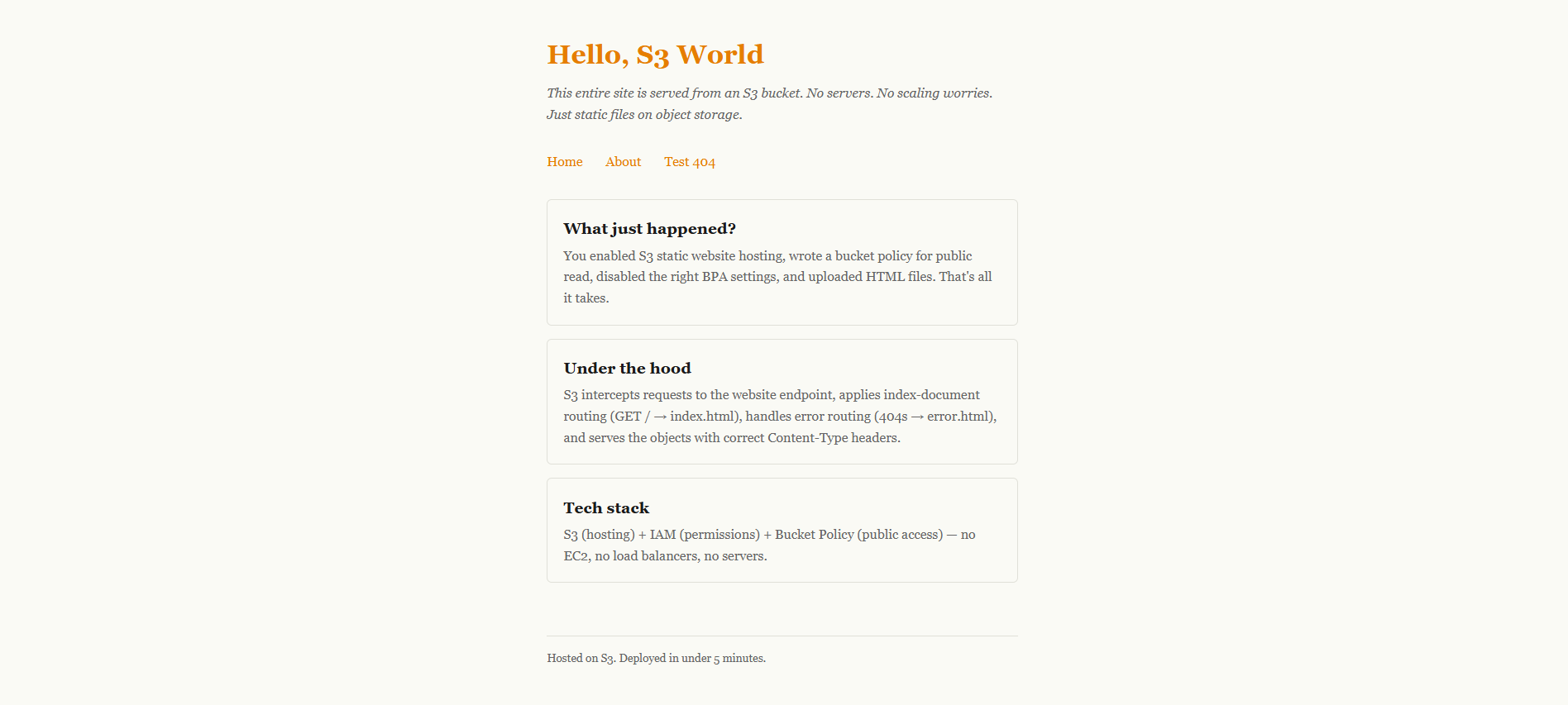
Open this URL in your browser. You should see your styled homepage with the cards, navigation, and footer.
10. Test index document routing
Navigate to: http://...s3-website-.../
S3 serves index.html at the root. This is the index document feature — no filename in the URL.
11. Test the /about page
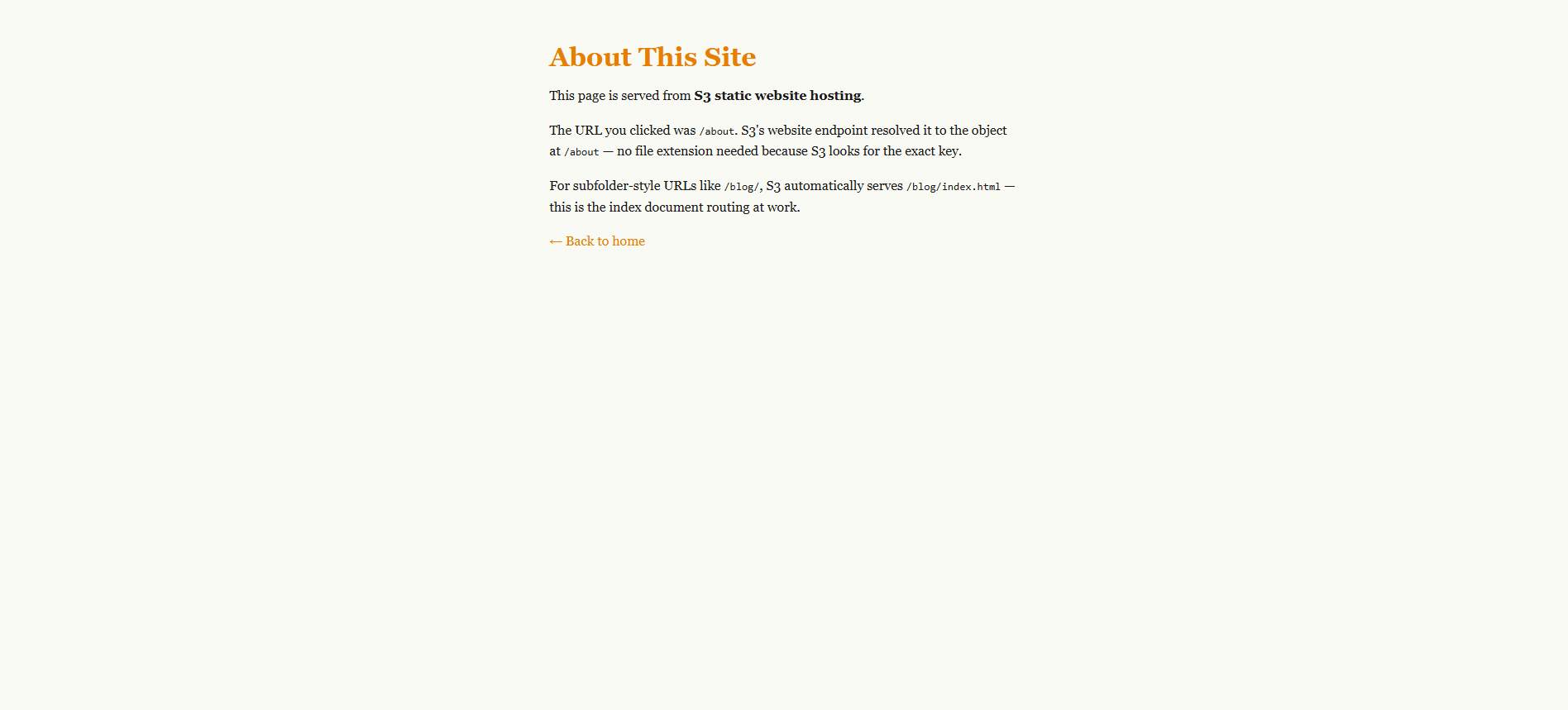
Add /about to the URL. S3 looks for an object at exactly the key about — it finds about.html doesn't match. Wait — we uploaded about.html but the link goes to /about.
Two solutions: either rename the file to remove .html, or create a folder. Let's do it properly:
aws s3 mv s3://learn-devops-site-YOURNAME-0006/about.html s3://learn-devops-site-YOURNAME-0006/about

aws s3 cp s3://learn-devops-site-YOURNAME-0006/about - | Select-Object -First 5
Now /about will work. S3 serves the object at key about regardless of extension — as long as the Content-Type is text/html.
Better yet, use the standard pattern: /about/index.html paired with the link pointing to /about/. That's cleaner for real sites.
12. Test the custom error page
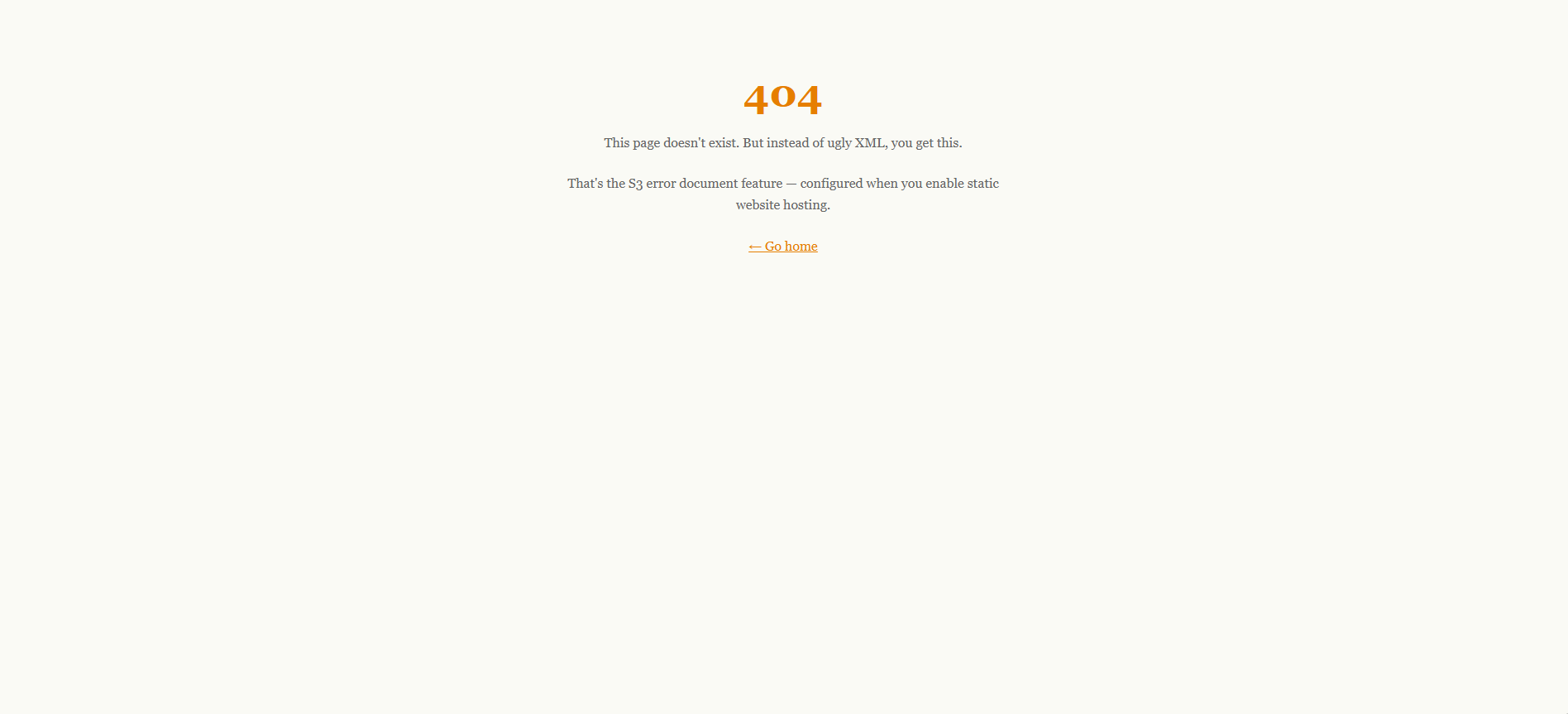
Navigate to any URL that doesn't exist: /nonexistent or /foo/bar.
Instead of the usual S3 XML error, you get your styled 404 page. The HTTP status code is still 404 — check DevTools Network tab to confirm.
13. Check the website configuration
aws s3api get-bucket-website --bucket learn-devops-site-YOURNAME-0006
You should see the index and error document settings echoed back.
{
    "IndexDocument": {
        "Suffix": "index.html"
    },
    "ErrorDocument": {
        "Key": "error.html"
    }
}
14. Cleanup
aws s3 rm s3://learn-devops-site-YOURNAME-0006/ --recursive
aws s3api delete-bucket --bucket learn-devops-site-YOURNAME-0006
Mission check: This is your first project deliverable. You just hosted a real, multi-page static website on S3 — with index routing, custom error pages, and proper public-read access. The only thing missing for production is HTTPS and a custom domain (CloudFront lesson coming later). Pat yourself on the back.
The HTTPS Gap and CloudFront Preview
The website endpoint is HTTP-only. For production, you need HTTPS. The standard architecture is:
User → CloudFront (HTTPS, CDN, custom domain)
         │
         ▼
       S3 bucket (private — no public policy needed)
With CloudFront:
- CloudFront terminates HTTPS and serves your custom domain (e.g.,
www.myblog.com) - CloudFront has permission to read from your S3 bucket via an Origin Access Control (OAC)
- The bucket policy grants access to CloudFront, not to the public
- Your bucket stays completely private — no public bucket policy needed
We'll cover this in a future lesson. For now, you know how to host on pure S3 — which is the foundation CloudFront builds on.
Primary Sources
- S3 User Guide — Hosting a static website on Amazon S3
- S3 User Guide — Configuring an index document
- S3 User Guide — Configuring a custom error document
- S3 User Guide — Website endpoints (explains the REST vs website endpoint distinction)